
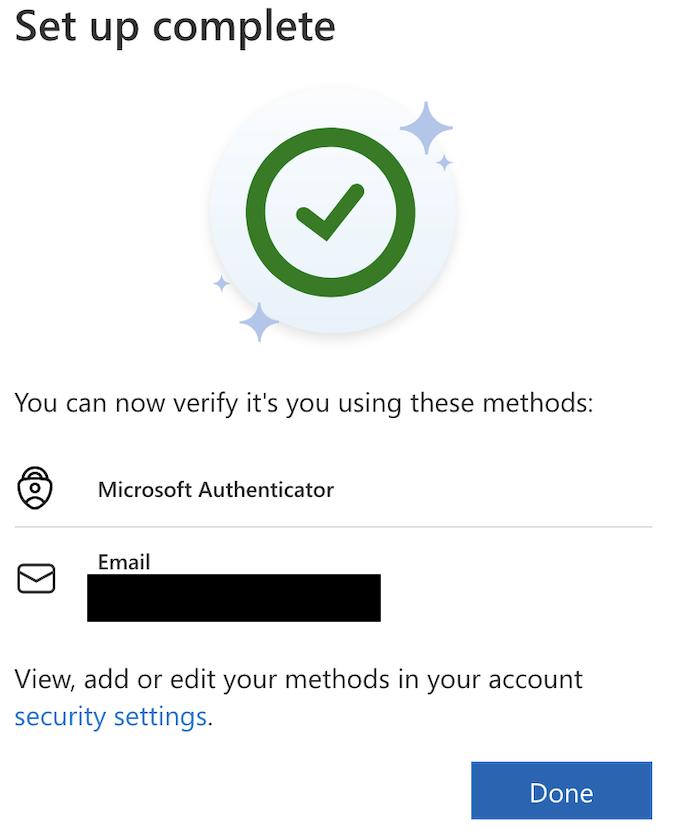
If Microsoft 365 keeps displaying the “Set up complete” message every time you sign in, even though multifactor authentication (MFA) is already configured, there may be a mismatch between your registered authentication methods and Microsoft Entra ID policies.
In this guide, we’ll show you how to investigate this issue and enable Microsoft Authenticator for a single administrator account without affecting the rest of your organization.
The Problem: Repeated “Set Up Complete” Message
After signing in to Microsoft 365 or Microsoft Entra, the administrator repeatedly sees:
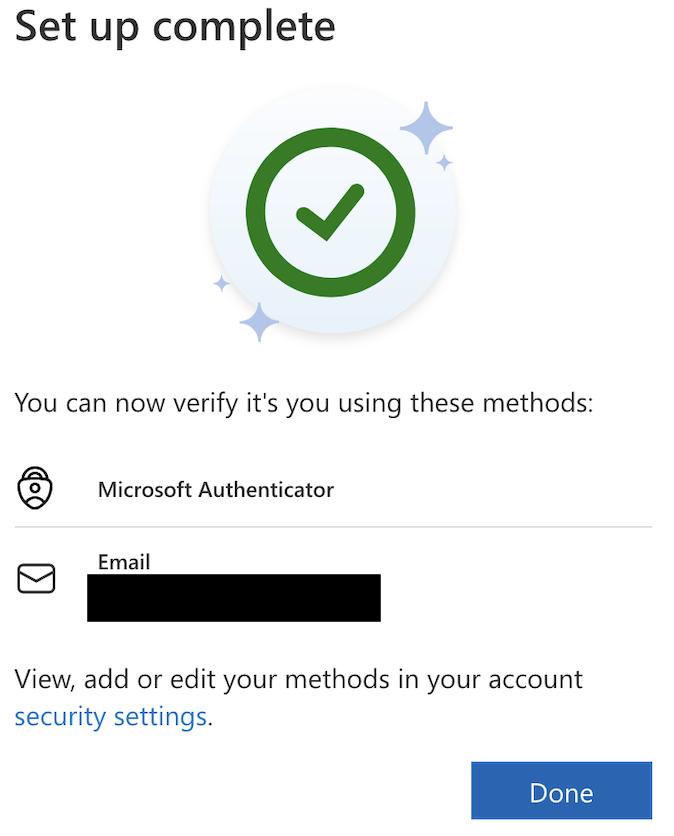
Caption: Microsoft 365 repeatedly displays the “Set up complete” message during administrator sign-in.
The administrator account may already have Microsoft Authenticator, email, phone and app password methods registered.
The same screen can continue appearing even in Incognito mode, suggesting the problem is not simply related to browser cookies.
Step 1: Verify Registered Authentication Methods
Open: https://mysignins.microsoft.com/security-info
Check whether Microsoft Authenticator is registered correctly.
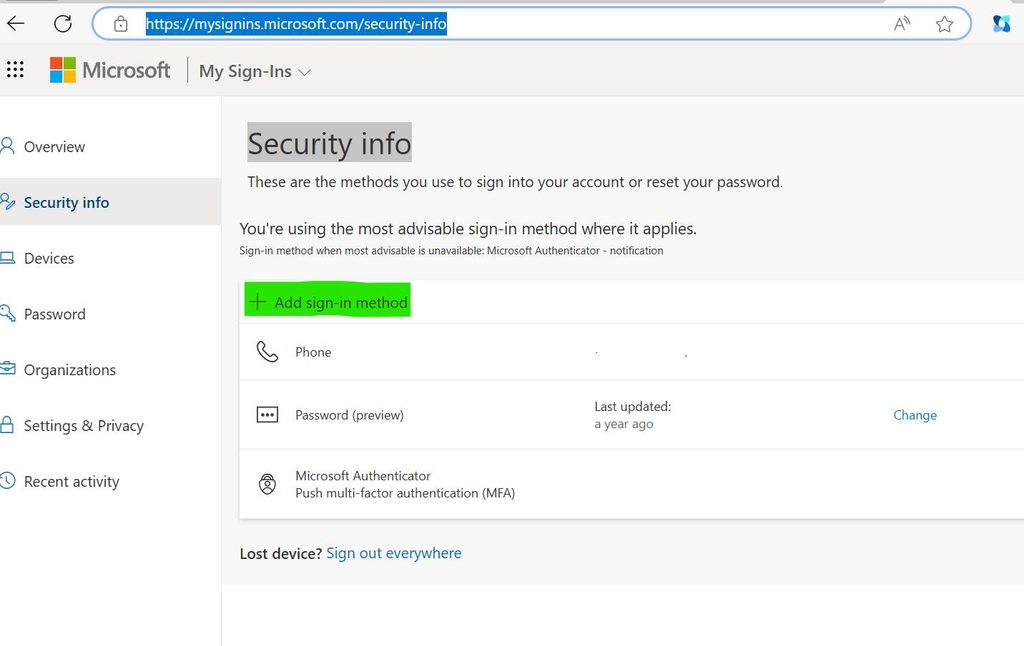
Caption: Registered authentication methods in the Microsoft Security Info portal.
If the required methods are already registered, avoid deleting or reconfiguring them immediately.
Instead, check whether Microsoft Entra ID policies allow those methods.
Step 2: Check Microsoft Entra Authentication Policies
- Sign in to https://entra.microsoft.com.
- Navigate to Entra ID → Authentication methods → Policies.
- Locate Microsoft Authenticator.
- Check its current Enabled status.
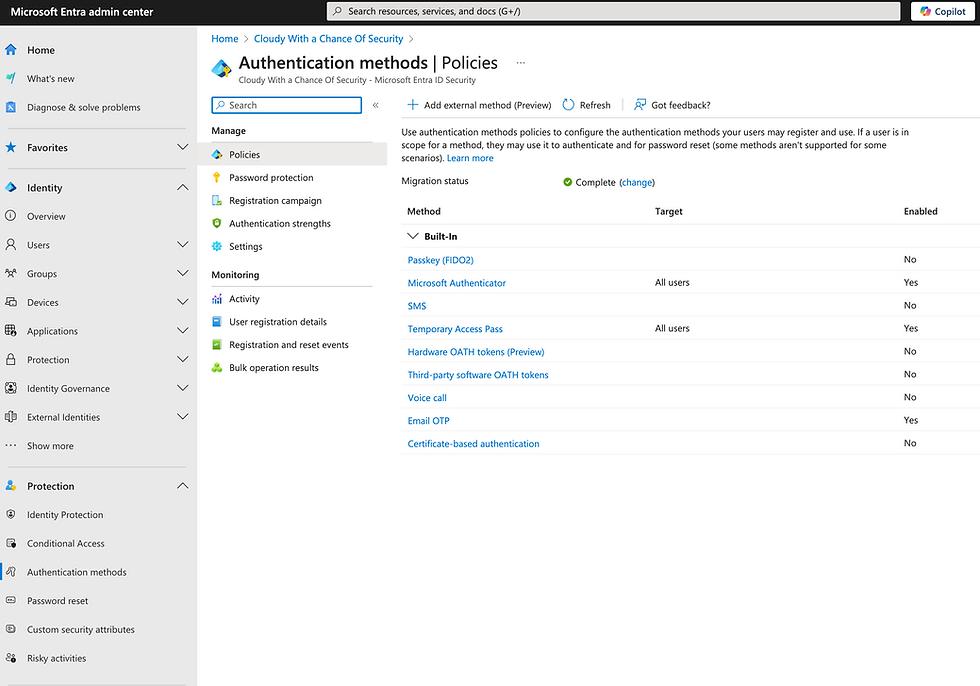
Caption: Microsoft Authenticator is registered for the administrator but disabled in the Authentication methods policy.
In our example, Microsoft Authenticator was already registered on the administrator account, but the Authentication methods policy displayed No.
This mismatch is worth investigating. However, it does not necessarily prove that it is the cause of the repeated registration message, because legacy MFA settings and other policies may also apply.
Step 3: Create a Security Group for One Administrator
If you only want to enable Microsoft Authenticator for one administrator, create a dedicated security group.
Navigate to:
Entra ID → Groups → All groups → New group
Configure the group:
| Setting | Value |
|---|---|
| Group type | Security |
| Group name | MFA-Admin-Only |
| Membership type | Assigned |
| Members | Affected administrator account |
Click Create.
Ensure the group contains only the administrator account you want to configure.
Step 4: Enable Microsoft Authenticator for the Group
Navigate to:
Entra ID → Authentication methods → Policies → Microsoft Authenticator
Configure:
| Setting | Value |
|---|---|
| Enable | Yes |
| Target | Select groups |
| Included group | MFA-Admin-Only |
| Registration | Optional |
| Authentication mode | Any |
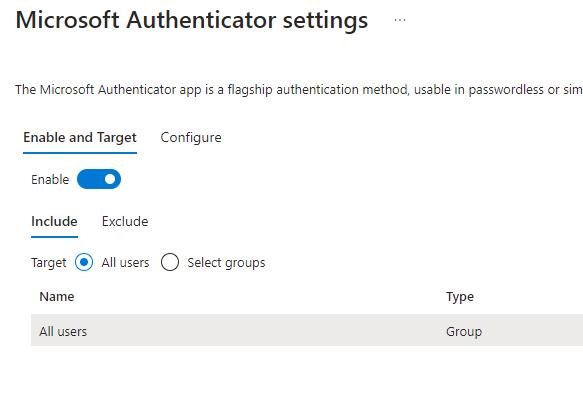
Caption: Microsoft Authenticator policy configured for a dedicated administrator security group.
Open the Configure tab.
Review the Allow use of Microsoft Authenticator OTP setting if six-digit codes from Microsoft Authenticator are required. Check its scope before changing it.
Click Save.
This allows Microsoft Authenticator for the selected group through the policy. Other existing authentication policies may still apply to users.
Note: Enabling an authentication method does not automatically enforce MFA. MFA requirements are controlled separately through applicable security policies.
Step 5: Test the Administrator Sign-In
After saving the settings:
- Open a new Incognito or Private Browsing session.
- Navigate to https://admin.microsoft.com.
- Sign in with the affected administrator account.
- Complete the MFA verification.
- Check whether the “Set up complete” message appears again.
Test another fresh sign-in session to confirm the result.
Avoid removing existing authentication methods until you have verified that administrator access remains functional.
Step 6: What If the Problem Continues?
If the same message continues to appear, investigate the following areas.
Registration Campaign
Navigate to:
Entra ID → Authentication methods → Registration campaign
Check whether an active campaign is targeting the administrator account.
Self-Service Password Reset (SSPR)
Navigate to:
Entra ID → Password reset → Registration
Review the registration requirements and settings for reconfirming authentication information.
Authentication Registration Reports
Navigate to:
Entra ID → Authentication methods → User registration details
Verify whether the account is registered for MFA and SSPR.
You can also review Registration and reset events for additional diagnostic information.
Conclusion
A recurring “Set up complete” message in Microsoft 365 does not always indicate a browser problem.
One useful troubleshooting step is to compare the authentication methods registered for an administrator with those permitted by Microsoft Entra ID policies.
Using a dedicated security group makes it possible to enable Microsoft Authenticator for a specific administrator without unnecessarily extending that method to all users.
If the problem persists, continue investigating Registration Campaign, SSPR and other applicable authentication policies.
Official Microsoft Documentation
- Manage authentication methods in Microsoft Entra ID
- Microsoft Authenticator registration campaigns
- Self-service password reset overview
Need Help with Microsoft 365?
Having trouble with Microsoft 365 authentication, security policies, or administration? PRASOM provides professional Microsoft 365 setup, administration, and support for businesses across Lithuania, both remotely and on-site.